Choose and use a founder tool
Find the tool for your immediate task, use clear inputs and keep a usable output.
Founder tools help you complete a specific task without working through an entire Lab. Browse the catalogue publicly; most working tools require sign-in.
Start from the decision
| What you need | Useful starting point |
|---|---|
| Understand a customer's problem | Customer Interview Toolkit or Builder Canvas |
| Explain your offer | Value Proposition Canvas or Business Plan Generator |
| Prepare a presentation | Pitch Deck Generator |
| Examine cash, runway or unit economics | Financial Calculator or Revenue Model Simulator |
| Plan growth | Go-To-Market Strategy Builder or 90-Day Milestone Planner |
| Review relationships or operations | Stakeholder & Partnership Mapper or OpenBuilder Playbook |
| Prepare a funding conversation | Due Diligence, Capital Pathway or Fundability Blueprint |
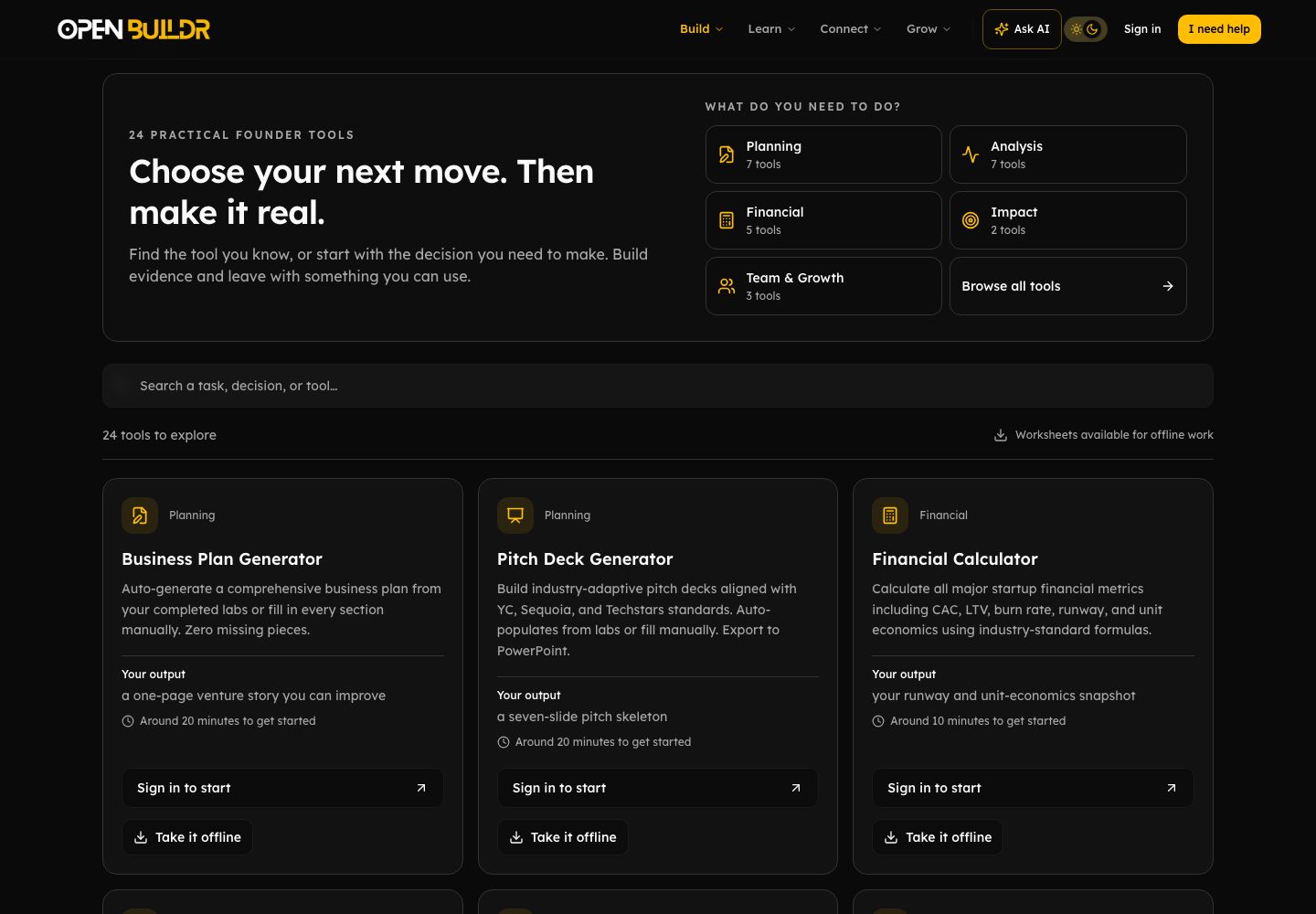
Current product view, captured September 2026.
Find and use a tool
- Open Founder Tools.
- Search for the task, decision or tool name. Use a category such as Planning, Financial or Analysis to narrow the list.
- Read the tool's purpose and start with one real situation.
- Enter known facts. Label assumptions, estimates and the time period behind numbers.
- Review the result before using its Save, Download or Share controls.
Signed-in users can save catalogue favourites to find tools again. A favourite bookmarks the tool; it does not save the work inside it.
Check what Save means
Saving differs by tool. Business Plan Generator saves locally. Pitch Deck Generator saves an account draft. Customer Interview Toolkit keeps a local draft and has a separate Save to Deliverables action. Follow the saving guide before changing devices.
What happens next
Leave with one output you can review or test. If it changes a decision, carry the relevant excerpt into your venture evidence. AI suggestions can help draft an answer; check them against your actual situation.